WebPaint98 とはWhat is WebPaint98?
WebPaint98 は、PC-98 時代のペイントソフトの操作体系にインスパイアされた、ブラウザだけで動く ドット絵ペイントアプリです。640×400・16 色のインデックスカラーで描き、当時の標準画像形式である MAG 形式で保存できます。インストールも会員登録も不要で、描いた内容はブラウザ内に自動保存されます。
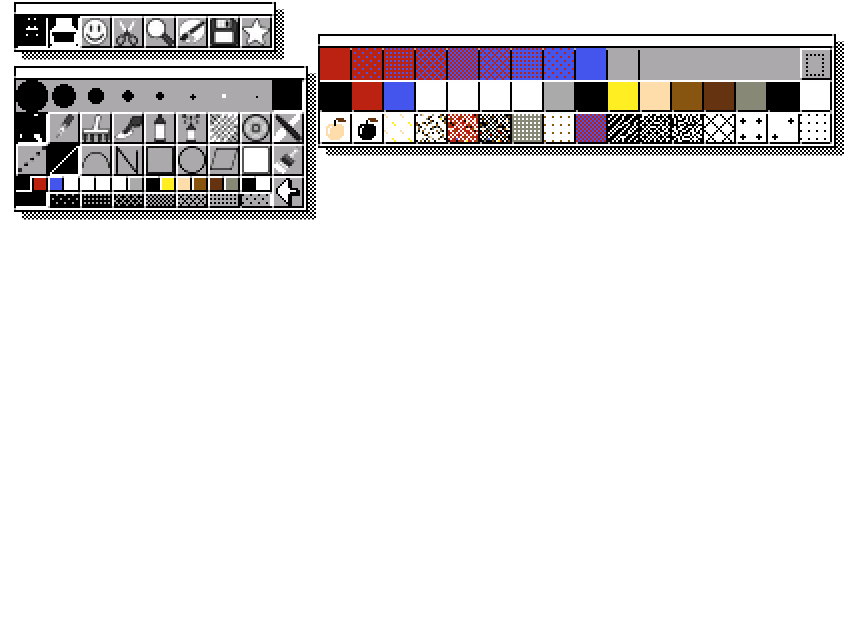
画面はマウスで動かせる小さなウィンドウの集まりでできています。左上のアイコンバーの各ボタンで、 対応するウィンドウを開いたり閉じたりします。
WebPaint98 is a pixel-art paint application that runs entirely in your browser, inspired by the way paint software worked on the PC-98 in the early 90s. You draw on a 640×400 indexed-color canvas with a 16-color palette, and you can save in MAG, the standard image format of that era. No install, no sign-up — your work is saved automatically inside your browser.
The screen is made of small draggable windows. The icon bar in the top-left opens and closes them.
Reset ボタンを押してください。
About autosave: your picture, palette and window layout are stored in your
browser (IndexedDB) and restored the next time you open the page. Undo history is not saved.
Use the Reset button in the Filer window to clear the stored data.
タッチ操作Touch controls
| タップ | 左クリック |
|---|---|
| 長押し | 右クリック |
| 2本指で移動 | スクロール |
| ピンチ | 画面の拡大縮小 |
| Tap | Left-click |
|---|---|
| Touch and hold | Right-click |
| Move with two fingers | Scroll |
| Pinch | Zoom the whole screen |
画面の縦横比Screen aspect ratio
フッターの「4:3表示」を押すと、実機(PC-98のブラウン管)に近い縦横比(ドットが少し縦長)に切り替えられます。既定はドットが正方形の表示です。普通の解像度の画面では、切り替えるとドットの高さが不揃いに見えることがあります。
The "4:3" button in the footer switches to an aspect ratio closer to the original PC-98 CRT (dots are slightly taller than they are wide). The default shows square dots. On a typical screen, switching it on can make dot heights look slightly uneven.
絵を描く(ペンウィンドウ)Drawing (Pen window)
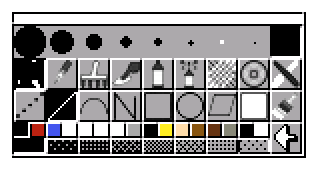
ペンウィンドウは上から順に次の内容です。
- ブラシ行: 8 段階のブラシの太さ。
- 道具の行(上段): 何を描くか(ペン/1 ドット/かき混ぜ/クローン/ソフトブラシ/スプレー/ディザ/ぼかし/ランダム)。
- 描き方の行(下段): どう描くか(フリーハンド/直線/連続直線/矩形/楕円/塗りつぶし など)。上段と下段は自由に組み合わせられます。
- 16 色 / トーン: 現在の色と網点パターンを選びます。
- 現在色(右上): 今から描かれる色。タイルや取り込んだ模様を選ぶと、単色ではなく模様が表示されます。
ブラシ行とトーン行を右クリックすると、その形を 16×16 のドット単位で編集できる 拡大エディタが開きます。
From top to bottom, the Pen window contains:
- Brush row — eight brush sizes.
- Tool row (upper) — what you draw with (pen, 1-dot, smudge, clone, soft brush, spray, dither, blur, random walk).
- Stroke row (lower) — how you draw (freehand, line, polyline, rectangle, ellipse, flood fill, …). The two rows combine freely.
- 16 colors / tones — the current color and halftone pattern.
- Current color (top-right) — what you are about to paint with. If you pick a tile or a captured pattern, this cell shows the pattern instead of a flat color.
Right-click a brush or a tone to open a magnified editor where you can edit that shape dot by dot on a 16×16 grid.
模様で描く(タイルウィンドウ)Painting with patterns (Tile window)
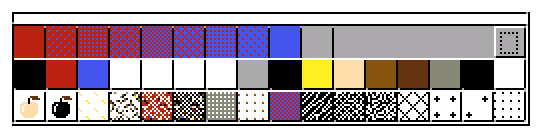
- 1 段目(グラデーション): 両端の 2 色の間を網点で 9 段階に分けたものです。好きな段をクリックすると、その網点が現在の色になります。
- 1 段目の右端の小さなボタン: 押すと「両端の色を今の色から採り直す」モードになり、この状態で左端/右端のセルを押すと、そこに今の色が入って中間の段が作り直されます。
- 2 段目: 16 色のベタ塗り。ペンウィンドウの 16 色と連動しています。
- 3 段目: 絵柄タイル。選ぶと以降の描画がその模様で塗られます。右クリックで 16×16 の拡大エディタが開きます。
- 1 段目の右端の幅広い部分にあるボタン: 押すと画面の上に 16×16 の枠が出ます。好きな場所でクリックするとその部分の絵がそのまま模様になります。3 段目のタイルを選んだ状態で使うと、そのタイルとして登録されます。
- Row 1 (gradation) — nine halftone steps between two endpoint colors. Click any step to make it the current color.
- Small button at the right of row 1 — switches to "pick up endpoints" mode. While it is pressed, clicking the leftmost or rightmost cell stores the current color there and rebuilds the steps in between.
- Row 2 — the 16 solid colors, kept in sync with the Pen window's palette.
- Row 3 — pattern tiles. Selecting one paints with that pattern. Right-click opens the 16×16 magnified editor.
- Button at the far right of row 1 — shows a 16×16 frame over the canvas; click anywhere to capture that part of your picture as a pattern. If a row-3 tile is selected, the capture is stored into that tile.
拡大して描く(ルーペウィンドウ)Zoomed editing (Loupe window)
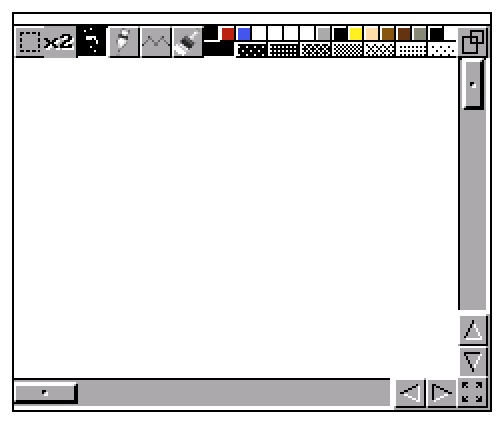
- 表示位置指定(左端): 押すと作業領域の上に、今見えている範囲と同じ大きさの枠が出ます。ドラッグは不要でマウスに追従し、もう一度クリックするとそこが表示範囲になります。
- 倍率: 押すたびに ×2 → ×4 → ×8 と切り替わります。
- 4 種類の描画: 1 ドット/2×2 ドット/直線/同色塗りつぶし。
- 色 / トーン見本: 拡大表示のまま色とトーンを選べます。ペンウィンドウと同じ値を共有しています。
- 右クリック: その画素の色を現在の色にします(スポイト)。
- 右上 / 右下のボタン: 全画面表示の切り替えと、ドラッグでのサイズ変更。
- View position (leftmost) — shows a frame the size of the current view over the canvas. No dragging needed: it follows the mouse, and a second click moves the view there.
- Zoom — cycles ×2 → ×4 → ×8.
- Four drawing modes — 1 dot, 2×2 dots, line, and flood fill.
- Color / tone swatches — pick colors and tones without leaving the zoomed view. They are the same values the Pen window uses.
- Right-click — picks up the color of that pixel (eyedropper).
- Top-right / bottom-right buttons — toggle full-screen view, and resize the window by dragging.
色を変える・守る(パレット / マスク)Editing and protecting colors (Palette / Mask)
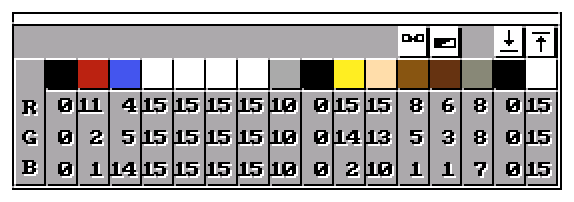
色見本をクリックすると、その色の R/G/B を増減できます。Change は 2 色を選んで入れ替え、
Gradation は選んだ 2 色の間をなめらかに補間します。どちらもボタンを押した後に
色見本を 2 回クリックして使います。
Click a swatch to adjust its R/G/B values. Change swaps two colors and
Gradation interpolates smoothly between two colors — for both, press the button and
then click two swatches.
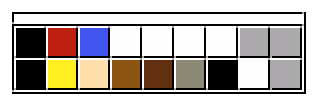
色をクリックすると斜線が付き、その色の部分には描き込めなくなります(塗り分けの保護に使います)。 右端の上のボタンはマスク全体の ON/OFF、下のボタンは選択の反転です。
Click a color to mark it with a diagonal stripe: pixels of that color can no longer be painted over. The upper right-hand button turns the whole mask on and off; the lower one inverts the selection.
文字を入れるAdding text
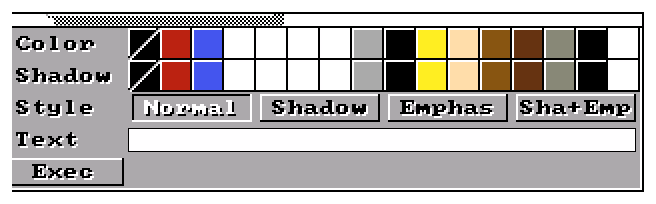
Colorで文字の色、Shadowで影の色を選びます。StyleでNormal(普通)/Shadow(影付き)/Emphas(太字)/Sha+Emp(影+太字)を選びます。Textの欄に文字を入力します。Execを押すと作業領域に枠が出るので、置きたい位置でクリックします。
- Pick the text color under
Colorand the shadow color underShadow. - Choose
Normal,Shadow,Emphas(bold) orSha+EmpunderStyle. - Type your text into the
Textfield. - Press
Exec, then click on the canvas where you want the text to go.
保存と書き出し(ファイラーウィンドウ)Saving and exporting (Filer window)
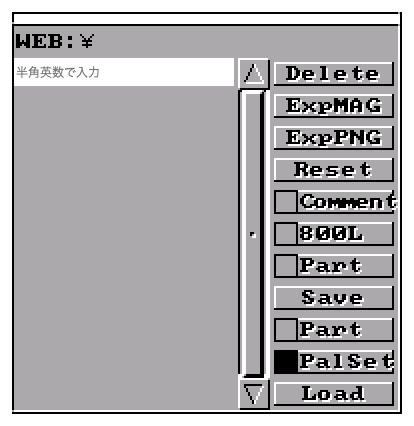
| ボタン | 内容 |
|---|---|
Save / Load | ブラウザ内の保存領域に MAG 形式で保存・読み込みします。 |
Delete | 選んだファイルを消します。 |
ExpMAG / ExpPNG | パソコンへ MAG / PNG ファイルとしてダウンロードします。 |
Reset | 自動保存の内容を消して初期状態に戻します。 |
作業領域に .MAG / .PNG ファイルをドラッグ&ドロップしても読み込めます。
MAG 形式は当時の標準形式なので、書き出したファイルは当時のソフトでも読めます。
| Button | What it does |
|---|---|
Save / Load | Save to / load from in-browser storage, in MAG format. |
Delete | Delete the selected file. |
ExpMAG / ExpPNG | Download the picture to your computer as a MAG or PNG file. |
Reset | Clear the autosaved data and start over. |
You can also drag and drop a .MAG or .PNG file onto the
canvas to load it. MAG was the standard format of the era, so exported files can be opened by
period software.
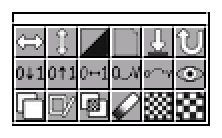
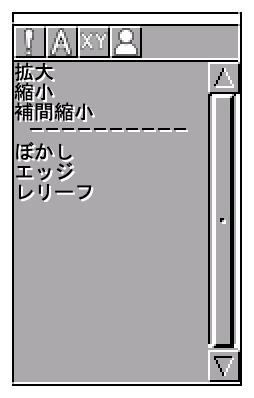
その他のウィンドウOther windows
キーボードショートカットKeyboard shortcuts
アプリの画面で ? を押すと、全ショートカットの一覧が表示されます。よく使うものは次のとおりです。
Press ? in the app to see the full list. The most useful ones are:
| キーKey | 動作Action |
|---|---|
| Ctrl/⌘ + Z | 取り消し(アンドゥ)Undo |
| Ctrl/⌘ + Y, ⇧⌘Z | やり直し(リドゥ)Redo |
| F1–F8 | 各ウィンドウを開くOpen each window |
| D | 開いているウィンドウを全部閉じるClose all open windows |
| ? | ショートカット一覧の表示 / 非表示Show / hide the shortcut list |
クレジットと権利についてCredits and rights
WebPaint98 は、Woody-Rinn(森林林檎)氏が制作し、1992 年に C-Lab から発売されたペイントソフト「マルチペイント」への オマージュ/リスペクト作品です。 同ソフトの UI レイアウト・操作体系・キーバインドを手本に、独立して書き起こした実装であり、 同製品そのものの再現でも、その配布物でもありません。
「マルチペイント」は権利者様の商品名です。本アプリは権利者様および販売元とは一切関係がなく、 公認・許諾を受けたものではありません。アプリ名にもこの名称は使用していません。
- 非商用・無償で公開しています(広告等も掲載していません)。
- UI 素材の一部(ウィンドウ背景・アイコン・8×8 フォント・ブラシ/トーン/タイルの各パターン)は、 当時のソフトから抽出・デコードしたものをそのまま使わせていただいています。
- 当時のソフトの実行ファイルやディスクイメージそのものは同梱していません。
- 権利者様からのご連絡があれば、速やかに対応(公開停止・修正・素材の差し替え)いたします。 ご連絡は URARA-works のお問い合わせフォーム (ページ下部のメールフォーム)または GitHub Issues へお願いいたします。
- 不具合の報告や要望も同じ窓口へどうぞ。
WebPaint98 is a homage / tribute to “Multi Paint”, a paint application created by Woody-Rinn (森林林檎) and released by C-Lab in 1992. It is an independent reimplementation that takes that software's window layout, interaction model and key bindings as a reference. It is neither a reproduction of that product nor a redistribution of it.
“Multi Paint” is the product name of its respective rights holders. WebPaint98 is not affiliated with, endorsed by, or licensed by them, and does not use that name as its own.
- Published non-commercially and free of charge (no advertising).
- Some UI assets — window backgrounds, icons, the 8×8 font, and the brush / tone / tile patterns — are extracted and decoded from the original software and used as they are.
- The original software's executable and disk images are not bundled.
- If the rights holder contacts us, we will respond promptly — taking the app down, changing it, or replacing the assets. Please reach us through the contact form on the URARA-works site (at the bottom of that page), or via GitHub Issues.
- Bug reports and feature requests are welcome at the same places.